
 Try PDF Merge Kit free for 7 days
Learn the most efficient workflow to combine receipts into one PDF for expenses, ensuring your tax filings and reimbursements are organized and secure.
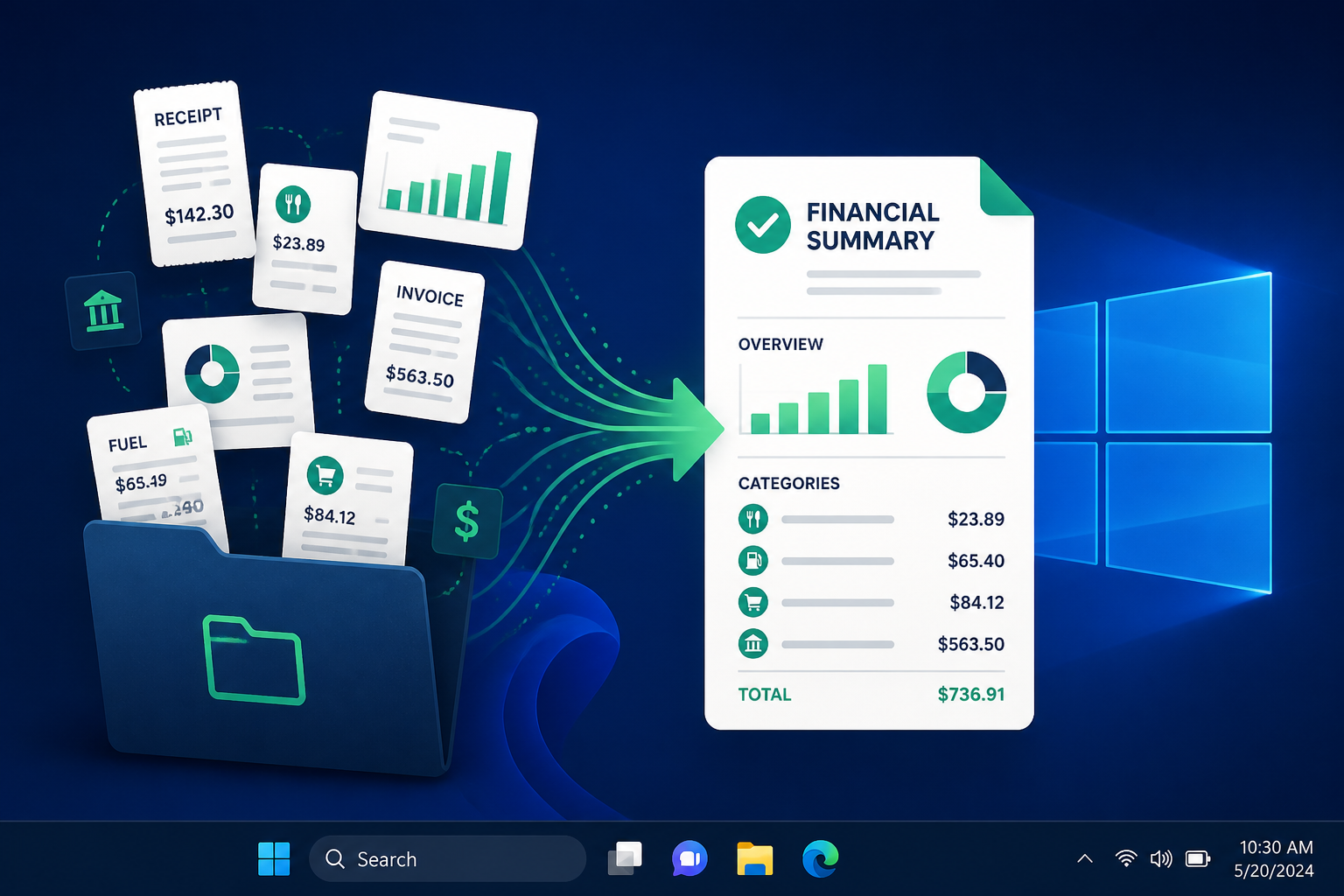
Managing expense reports is often the most tedious part of a professional's week. Whether you are a freelancer preparing for tax season or a corporate employee seeking reimbursement, the sheer volume of digital receipts, scanned invoices, and email confirmations can be overwhelming. The most effective way to streamline this process is to combine receipts into one PDF for expenses, creating a single, chronologically ordered document that your accounting department or the IRS will love.
The Problem with Multiple Receipt Files
When you submit a folder full of twenty separate JPGs and PDFs, you increase the likelihood of something being missed. Accountants often have to open every file individually, which delays your payment. Furthermore, loose files are easily lost in email threads or cloud storage sync errors. By consolidating everything into one master file, you ensure that your total matches the evidence provided, page by page.
Challenges of Online PDF Tools
Many users turn to web-based converters to merge their files. However, for expense reports, this introduces a significant privacy risk. Receipts often contain your home address, partial credit card numbers, and spending habits. Uploading these to a cloud server means you lose control over that data. Furthermore, if you have thirty small receipts, uploading them one by one to a website is time-consuming and prone to browser crashes.
A Better Workflow: Preparing Your Receipts
Before you hit the merge button, a little preparation goes a long way. Follow these steps to ensure your final PDF is professional and easy to navigate:
- Standardize Formats: Convert photos of paper receipts (HEIC or JPG) into PDF format. While some tools handle images directly, having everything as a PDF first ensures consistent scaling.
- Date-Based Naming: Rename your files using a YYYY-MM-DD format (e.g., 2023-10-15-Travel-Hotel.pdf). This makes sorting them chronologically much easier.
- Check for Legibility: Ensure that the total amount and the vendor name are clearly visible. A blurry receipt is as good as no receipt during an audit.
How to Combine Receipts into One PDF for Expenses Offline
For Windows users, the most efficient way to handle sensitive financial data is using a dedicated offline tool like PDF Merge Kit. Since it works entirely on your local machine, your financial data never leaves your computer.
Step 1: Drag and Drop Your Files
Open your merging tool and drag all your prepared receipts into the interface. If you’ve used the date-based naming convention mentioned above, the software should automatically detect the order.
Step 2: Reorder and Organize
Sometimes you might want to lead with a summary sheet or put the largest expenses first. A good desktop tool allows you to drag pages around to reorder them visually. If a receipt was scanned upside down, this is the time to rotate it so the accountant doesn't have to strain their neck.
Step 3: Name the Output File Strategically
Don't just name the final file "Expenses.pdf." Use a descriptive name like 2023_Q4_Expenses_Marketing_YourName.pdf. This makes it searchable for both you and your company's finance team.
Why Offline Processing Matters for Financial Data
Privacy isn't just a buzzword; it's a security requirement for business owners. Receipts are a goldmine for identity thieves. When you combine receipts into one PDF for expenses using an offline application, you are eliminating the "middle man." There are no servers logging your transactions, no data breaches to worry about, and no internet connection required. You can finish your expense report on a plane or in a coffee shop without worrying about public Wi-Fi security.
Final Tips for Perfect Expense Submissions
- Include a Summary Page: Create a simple Word or Excel document listing the total amount, category, and date for each receipt. Save this as the first page of your PDF.
- Keep File Sizes Manageable: If you have 50+ receipts, the file can become large. Use a tool that maintains high resolution for text while keeping the file size optimized for email attachments.
- Maintain a Backup: Once you merge your receipts, keep the single PDF in a "Tax Year" folder. It’s much easier to back up one file than hundreds of scraps.
If you're looking for a simple, secure way to manage this process on Windows, PDF Merge Kit offers a straightforward solution. It allows you to combine receipts into one PDF for expenses, reorder pages, and name your output file without ever uploading your data to the cloud. You can try PDF Merge Kit for free for 7 days, and if it fits your workflow, a one-time payment of $9.99 gives you lifetime access—no subscriptions required.
Take control — merge PDFs today
Merge, reorder and rename files securely on your own PC.