
 Get PDF Merge Kit FREE for 7 days
Learn how to speed up your document management by using essential keyboard shortcuts for Windows to select, arrange, and merge PDF files in record time.
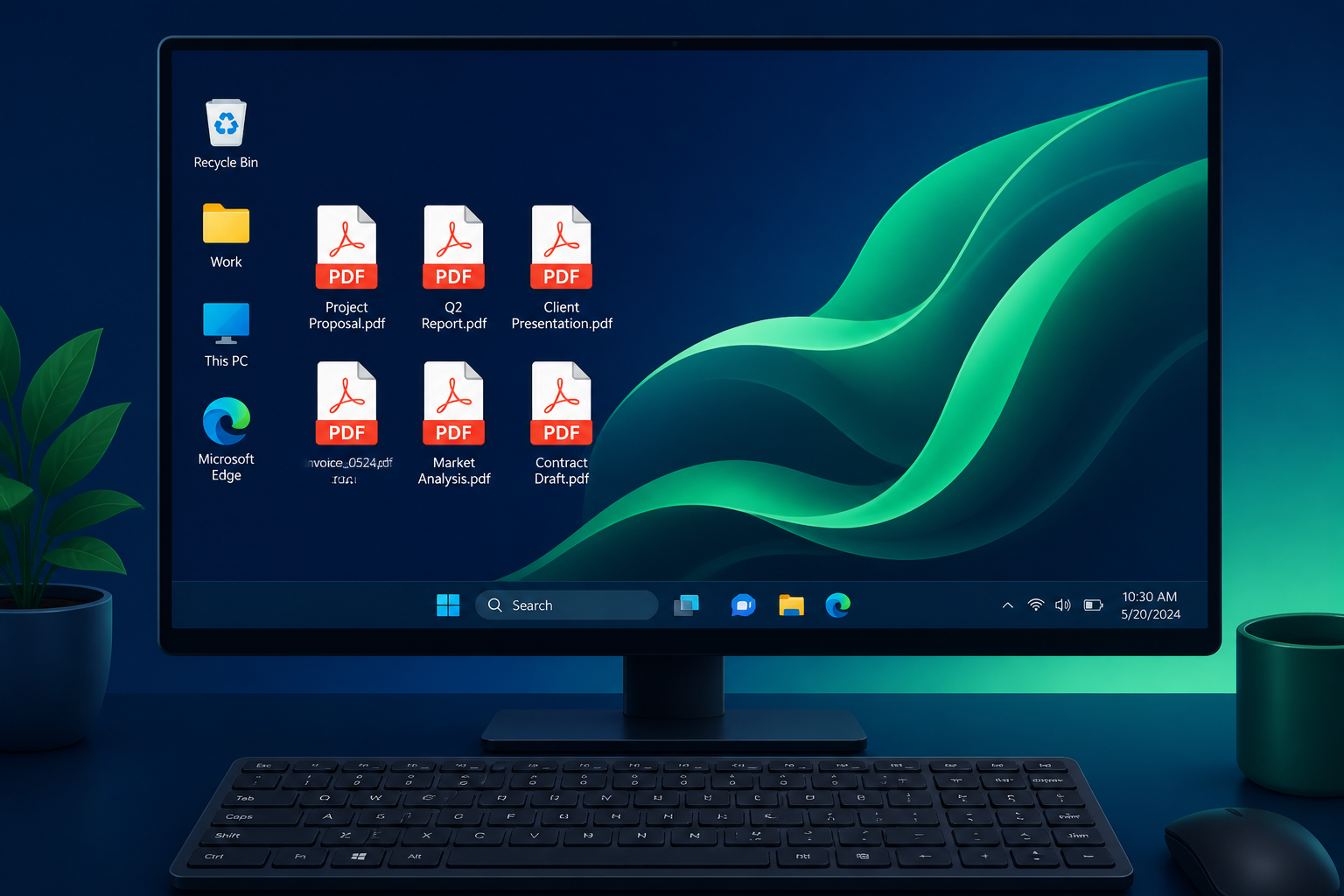
If you handle dozens of digital documents daily, reaching for the mouse every few seconds is a productivity killer. Whether you are combining legal contracts, organizing receipts, or assembling a final report, using keyboard shortcuts can shave minutes off every task. While Windows doesn't have a native one-click shortcut to join files, mastering the Windows environment and choosing the right local software can transform your document workflow.
The Efficiency Gap in PDF Management
Most users waste time navigating deep menus or waiting for browser-based tools to upload and process files. By the time a web-based merger has finished its "processing" animation, a power user using keyboard shortcuts on a local app has already finished the job and moved on to their next task. Speed is not just about the tool; it's about how you interact with your operating system.
Essential Windows Shortcuts for File Selection
Before you can merge, you need to select. Mastering File Explorer shortcuts is the first step to a faster PDF workflow.
Batch Selecting Files
- Ctrl + A: Select all PDF files in the current folder.
- Shift + Arrow Keys: Select a continuous block of files.
- Ctrl + Click: Select specific, non-adjacent files for merging.
- Ctrl + Shift + N: Create a new folder to isolate the files you intend to combine.
Quick Navigation
- Alt + D: Jump to the address bar to copy the folder path.
- F2: Instantly rename a file (crucial for ensuring your merged output has the correct final name).
- Alt + Enter: View file properties to check the file size before merging.
Drag-and-Drop Optimization
Keyboard shortcuts work best when paired with efficient mouse movements. To merge PDFs quickly, open your PDF utility and use Alt + Tab to switch between File Explorer and your workspace. Once your files are selected via the keyboard, simply hit Enter or drag them into your merging tool to load them instantly.
Why Offline Shortcuts Beat Online Tools
When you use online PDF tools, your keyboard shortcuts stop at the browser window. You are forced to deal with "Select Files" buttons and file picker dialogs that reset your view. Furthermore, online tools introduce a privacy risk; every time you use a shortcut to "Upload," you are sending potentially sensitive data to a remote server.
Working offline with a tool like PDF Merge Kit allows you to maintain the speed of your local hardware. There is no latency, no upload time, and no risk of your data leaving your Windows machine. The keyboard shortcuts you use in Windows stay consistent throughout the entire process.
Streamlining the Merge Process with PDF Merge Kit
For users who need more control than basic file selection, PDF Merge Kit provides a focused interface for Windows 10 and 11. Instead of fighting with complex software like Adobe Acrobat, you can quickly add files, use the interface to reorder them, and finalize your document in seconds.
The Pro Workflow
- Use Ctrl + Click in your folder to select your PDFs.
- Drag them into PDF Merge Kit.
- Use the visual interface to drag pages into the correct order.
- Type your new filename and hit Enter to save.
This workflow eliminates the need for expensive subscriptions or the slow, repetitive clicking required by most free web tools. By keeping the process offline, you also ensure that your bank statements, medical records, or business contracts remain strictly on your own device.
Advanced Shortcut: PowerToys and Beyond
For those who want to take Windows customization further, Microsoft PowerToys offers a "PowerRename" utility. You can use Ctrl + M (if configured) or the context menu to bulk-rename files before they are merged, ensuring that your final combined document reflects a logical order (e.g., 01_Introduction, 02_Analysis, 03_Conclusion).
Conclusion
Speed is the result of removing friction. By mastering Windows selection shortcuts and moving your PDF tasks to a dedicated offline tool, you remove the two biggest bottlenecks: manual clicking and cloud latency. Your documents stay private, your workflow stays fast, and your desktop stays organized.
If you're ready to stop waiting for uploads and start merging at the speed of your keyboard, try the PDF Merge Kit free 7-day trial. It is a one-time purchase of $9.99 with no subscriptions, designed specifically to make Windows PDF management simple and secure.
Your PDF merge workflow, simplified
Drag, drop, merge, sort and rename — all offline, all in one app.