
 Free 7-day trial — PDF Merge Kit for Windows
Learn the most efficient ways to merge PDF files on Windows 11 using native features and privacy-focused desktop tools without uploading to the cloud.
Windows 11 brought a significant design overhaul to the desktop experience, streamlining workflows and modernizing File Explorer. However, one task remains surprisingly fragmented for many users: combining multiple documents into a single file. Whether you are gathering receipts for an expense report or organizing project documentation, knowing how to merge PDF files on Windows 11 efficiently can save you hours of frustration.
The Windows 11 File Explorer Context
In older versions of Windows, the context menu (right-click) was cluttered. Windows 11 introduced a simplified context menu that prioritizes common actions. While Microsoft has added many quick actions, a native "Merge PDF" button still doesn't exist within the standard Shell interface. Most users find themselves searching for a workaround that doesn't involve complex software or risky online converters.
The "Print to PDF" Workaround
One built-in method many Windows 11 users attempt is using the Microsoft Print to PDF feature. By selecting multiple image files or documents in File Explorer and selecting 'Print', you can technically output them as a single PDF.
However, this method has significant drawbacks:
- No Page Reordering: You cannot easily change the sequence of pages before they are merged.
- Quality Loss: Images are often compressed or margins are forced into standard paper sizes, which can ruin the layout.
- PDF to PDF limitations: This method works best for images; trying to 're-print' existing PDFs often results in lost metadata and broken hyperlinks.
Why Offline Merging is Essential for Privacy
When you search for how to merge PDF files on Windows 11, the top results are often web-based "cloud" converters. While convenient for non-sensitive data, these services require you to upload your documents to a remote server.
For business contracts, medical records, or financial statements, the cloud is a liability. Once a file is uploaded, you lose control over where that data is stored or who can access it. On Windows 11, the safest way to handle documents is via local processing. Using a dedicated desktop application ensures that your files never leave your hard drive, keeping your private information private.
Professional Workflows with PDF Merge Kit
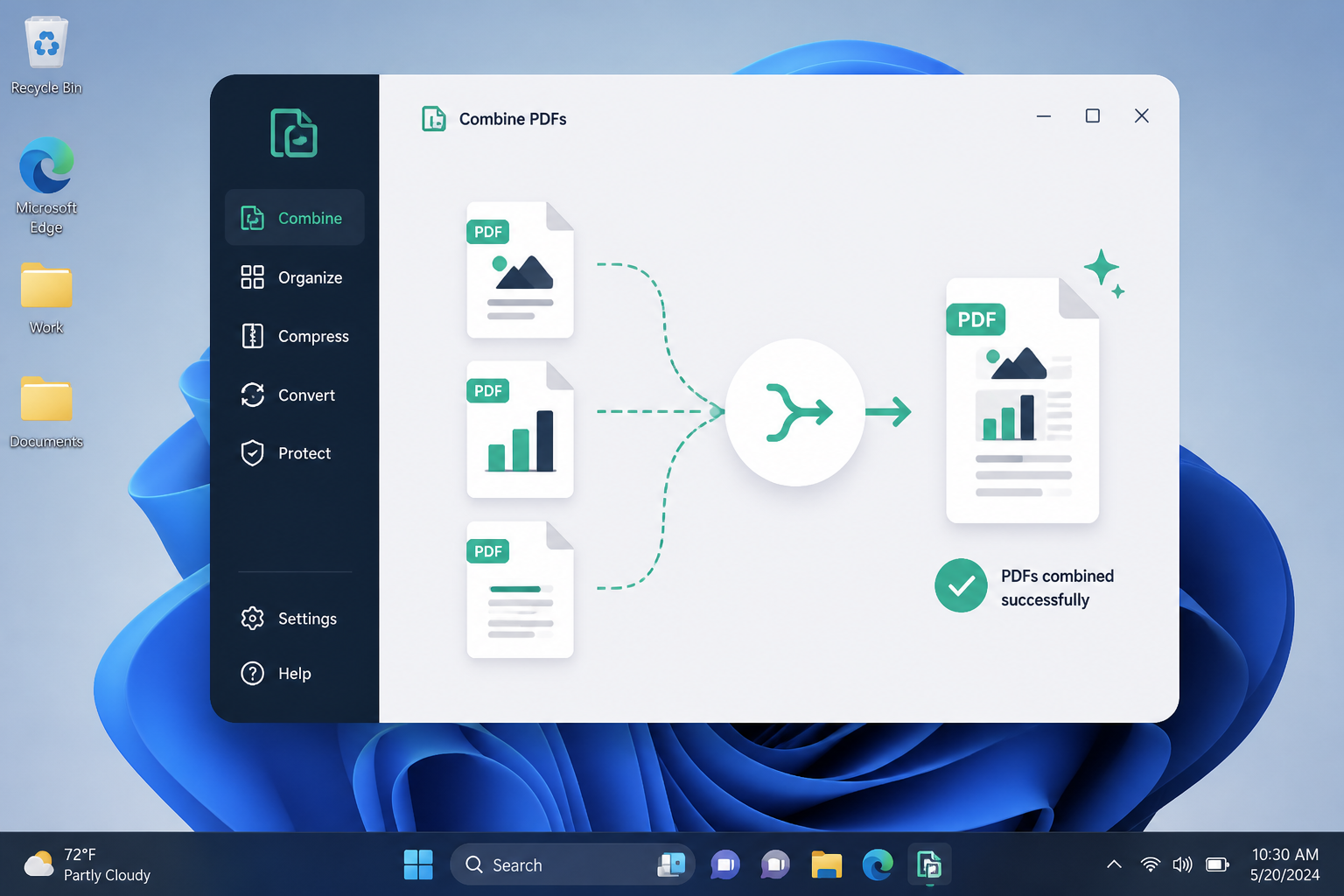
For those who need more control than the "Print to PDF" hack, PDF Merge Kit provides a native Windows 11 experience designed specifically for speed and privacy. Since it is a desktop app, it mirrors the sleek look of the OS while offering features the system lacks.
Step-by-Step: Merging on Windows 11
- Select Your Files: Drag and drop your PDFs directly into the app interface.
- Visual Reordering: Unlike the blind merging of cloud tools, you can see thumbnails and drag pages into the exact order you need.
- Naming the Output: Windows users often have specific naming conventions. You can set the output filename before the merge even begins.
- Instant Merge: Because the processing happens on your CPU rather than a distant server, the merge is nearly instantaneous, even with large files.
Optimizing Your PDF Library
Merging is often just one part of document management. Once you have combined your files, Windows 11 makes it easy to organize them. By using the 'Details' pane in File Explorer, you can add tags and authors to your newly merged PDFs to make them searchable later.
If you find yourself merging files daily, consider pinning your PDF tool to the Windows 11 Taskbar. This reduces the number of clicks required to start a new project, making the desktop environment feel like a cohesive workstation rather than a collection of disconnected apps.
Closing Thoughts on Windows 11 Productivity
Windows 11 is a powerful operating system, but it relies on specialized tools to bridge the gap in document handling. By choosing an offline, one-time purchase tool like PDF Merge Kit, you avoid the trap of expensive monthly subscriptions and the security risks of online uploaders.
Ready to clean up your digital filing cabinet? Try PDF Merge Kit for free with our 7-day trial. Experience how seamless merging PDF files on Windows 11 can be when your tools are built for the platform. It is just $9.99 for a lifetime license—no subscriptions, no clouds, just fast results.
The smarter way to merge PDFs on Windows
Merge with confidence — no cloud uploads, no subscriptions, just fast offline control.