
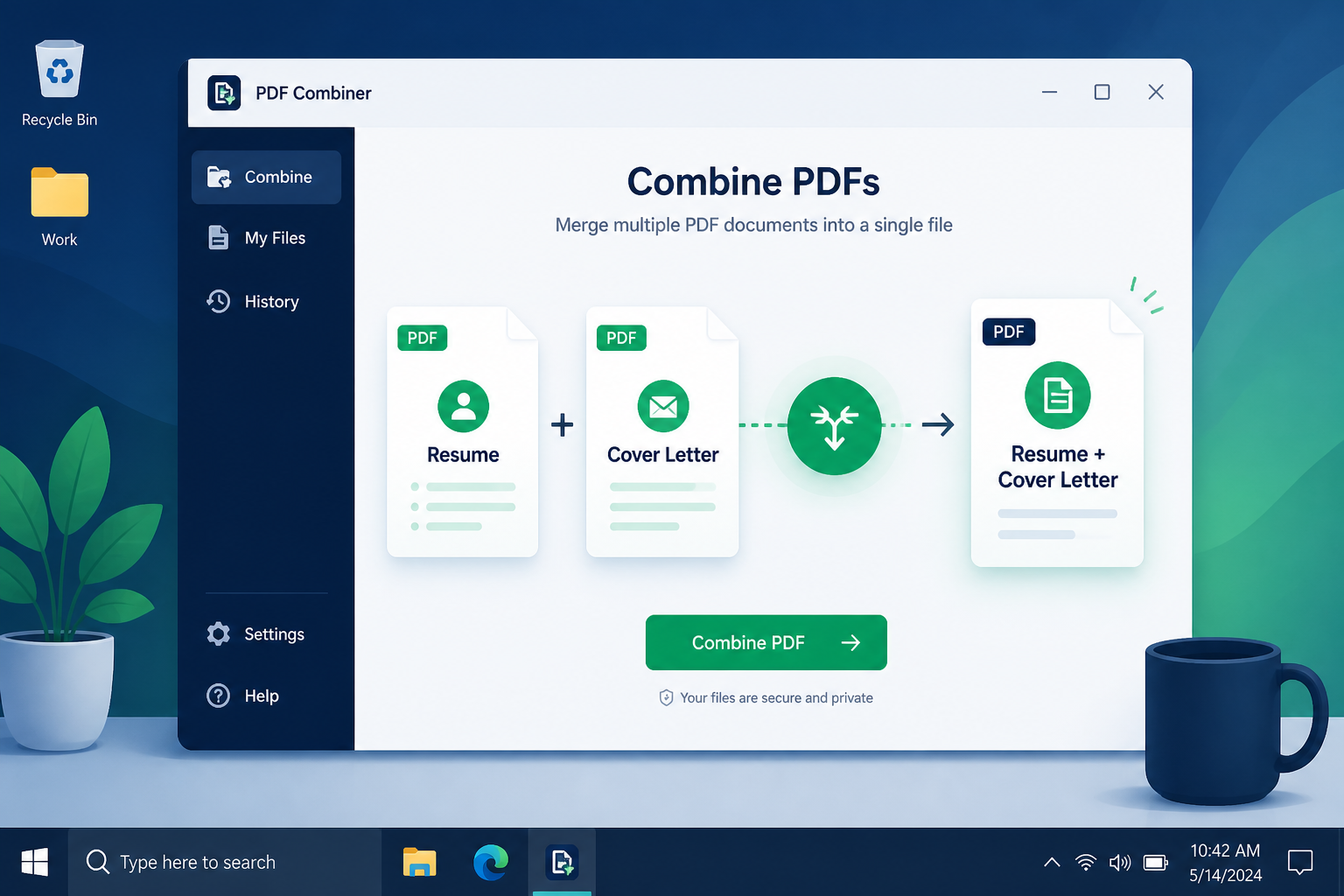
 Try PDF Merge Kit free for 7 days
Learn how to professionally combine your resume and cover letter into a single PDF to ensure hiring managers see your complete application package instantly.
When you are applying for your dream job, first impressions happen long before the interview. They happen the moment a recruiter opens your email or application portal. Managing multiple attachments can be risky; files get separated, or worse, a busy hiring manager might only open one of the two. Learning how to merge PDF resume and cover letter files into a single, cohesive document ensures that your story stays together.
In this guide, we will explore why a single document is often preferred by recruiters, the professional standards for sequencing your pages, and how to combine your files securely on Windows without risking your personal data on cloud servers.
Why You Should Combine Your Application Documents
Many job seekers wonder if they should keep their resume and cover letter separate. While some automated systems (ATS) have specific slots for each, many recruiters prefer a single PDF. Here is why:
- Eliminates Friction: A recruiter only needs to click one link to see your entire profile.
- Guaranteed Viewing: You ensure the cover letter is read before the resume, providing the necessary context for your experience.
- Device Compatibility: A single PDF looks the same on a smartphone, tablet, or desktop, preventing formatting issues that occur with Word documents.
- Professionalism: It demonstrates attention to detail and a desire to make the recruiter's job easier.
The Professional Sequence: Which Comes First?
When you merge your documents, order matters. Think of the final PDF as a physical packet you are handing to someone.
1. The Cover Letter (Page 1)
Your cover letter is your introduction. It sets the stage, explains your motivation, and highlights your soft skills. Placing this on the first page ensures the recruiter understands why you are applying before they dive into the what of your work history.
2. The Resume/CV (Page 2 and beyond)
Your resume follows immediately after. If your resume is two pages long, the final merged document will be three pages total. By keeping them in one file, you prevent the recruiter from losing interest while searching for the second attachment.
3. Portfolio or Certifications (Optional)
If the job description asks for certifications or a brief portfolio, these should be appended at the very end. Always lead with the cover letter and resume.
The Privacy Concern: Why Offline Merging Matters
Your resume and cover letter contain a goldmine of personal information: your full name, home address, phone number, work history, and educational background. When you use "free" online PDF tools, you are uploading this sensitive data to a remote server.
While many sites claim to delete files after an hour, you have no way to verify their security protocols or whether your data is being used to train AI models or sold to data brokers. For job seekers, privacy is paramount. Using an offline tool on your Windows desktop ensures that your personal information never leaves your computer until you are ready to send it to the employer.
How to Merge PDF Resume and Cover Letter on Windows
To create the perfect application packet, you need a tool that allows you to reorder pages and name the output file precisely. Here is a streamlined workflow:
Prepare Your Files
Save your cover letter and resume as separate PDFs from Word or Google Docs. Give them clear names like LastName_CoverLetter.pdf and LastName_Resume.pdf so you don't mix them up during the merge process.
Order and Combine
Using a local application like PDF Merge Kit, you can drag and drop both files into the workspace. A high-quality tool will let you see a preview or a list where you can move the cover letter to the top of the stack. This step is crucial; you don't want to accidentally put your resume first if your goal is a narrative introduction.
Name the Output File
Don't settle for a generic filename like merged_document.pdf. Use a professional naming convention such as FirstName_LastName_JobTitle_Application.pdf. This makes it easy for the recruiter to find your file in their "Downloads" folder later.
Refine Your Application Package
Before you hit send, open your new merged PDF and check for the following:
- Page Breaks: Does the transition from the cover letter to the resume look clean?
- File Size: Is the file under 5MB? Most email servers and ATS portals have size limits. Offline merging usually preserves the original compression, keeping files lean.
- Hyperlinks: Ensure any links to your LinkedIn profile or portfolio are still clickable in the merged version.
Conclusion
Merging your resume and cover letter is a small step that makes a significant impact on your professional presentation. By keeping your documents together, you control the narrative and make the hiring process smoother for your potential employer.
If you want a fast, secure, and permanent solution for your job hunt, try PDF Merge Kit. It is a Windows-native app that works entirely offline, ensuring your contact details and work history stay private. You can reorder pages easily to put your cover letter first and name your final file perfectly for the recruiter. Start your 7-day free trial today and see how easy it is to build a professional application for just a $9.99 one-time purchase.
Take control — merge PDFs today
Merge, reorder and rename files securely on your own PC.