
 Start your FREE trial — PDF Merge Kit
Discover the safest ways to combine sensitive documents offline using Windows desktop tools, avoiding the risks associated with cloud-based PDF processors.
In an era where 'the cloud' is the default for most software, the simple act of combining two documents often triggers a mandatory file upload. However, for those handling sensitive legal papers, medical records, or proprietary business data, the requirement to be online is a significant security risk. Knowing how to merge PDF without internet connection isn't just a matter of convenience; it is a fundamental practice for data sovereignty.
The Hidden Risks of Online PDF Tools
When you use a browser-based PDF merger, your document travels across the public internet to a remote server. While many reputable services claim to delete files after processing, the reality is that your data is briefly out of your control. This presents several challenges:
- Data Retention Policies: You are at the mercy of the provider's terms of service, which may change without notice.
- Server Vulnerabilities: Even the most secure cloud services can be targeted by hackers or suffer from misconfigured buckets.
- Bandwidth Limitations: Large files or batches of documents can take a long time to upload and download, especially on unstable or slow connections.
- Compliance Issues: For professionals in law, finance, or healthcare, uploading client data to third-party servers may violate GDPR, HIPAA, or other privacy regulations.
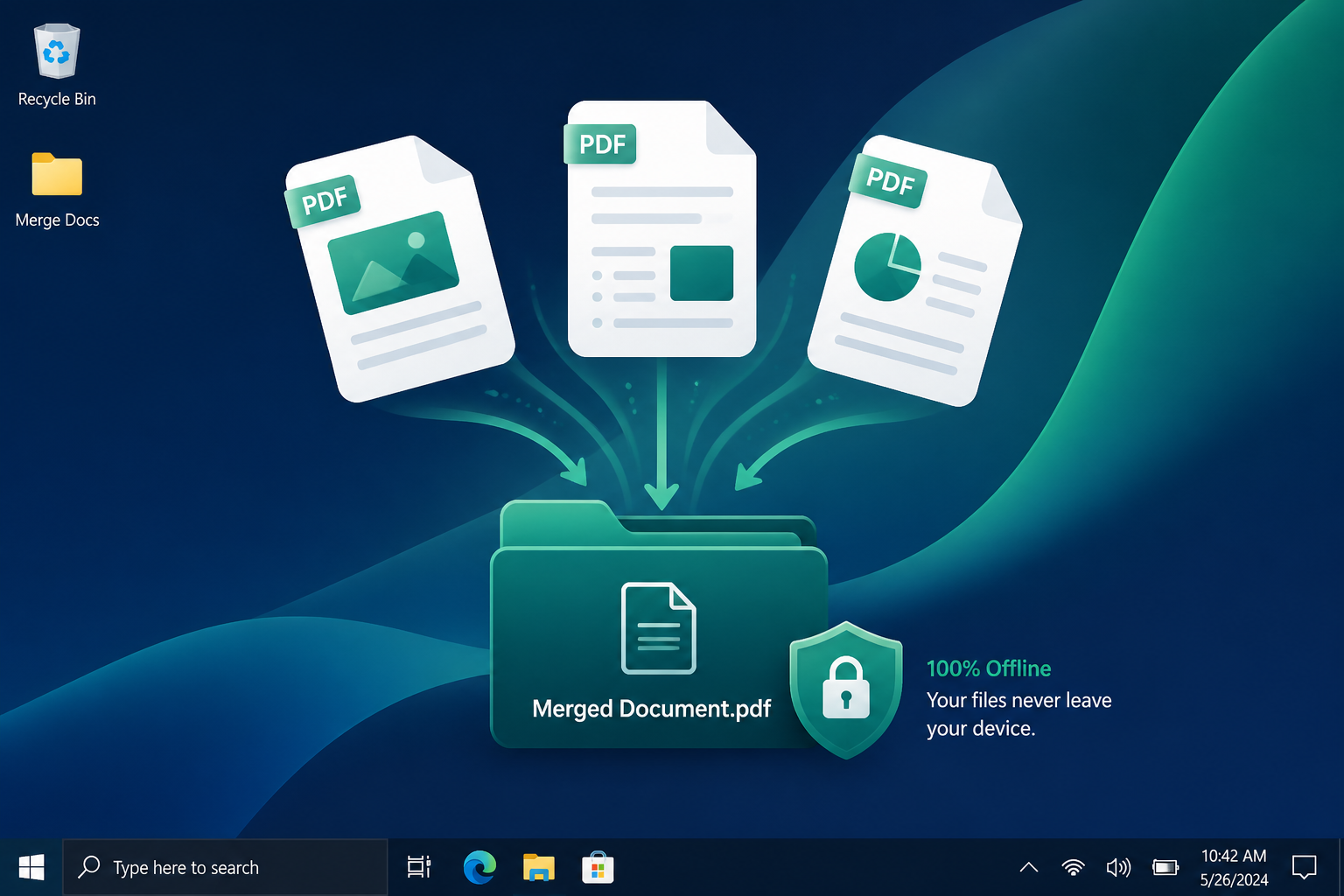
By opting to merge files locally, you ensure that your data never leaves your hard drive. Offline tools use your computer's own processing power, providing a closed-loop environment that is inherently more secure.
Methods to Combine PDFs Offline on Windows
There are several ways to handle PDF merging without an internet connection, ranging from built-in browser features to dedicated desktop software.
1. Using Dedicated Desktop Apps (Recommended)
Dedicated software like PDF Merge Kit is designed specifically for this purpose. Unlike online tools, these apps are installed locally on your Windows machine. You can drag and drop your files, reorder the pages, and hit merge—all while your Wi-Fi is turned off. This method is the fastest and most reliable for users who prioritize privacy.
2. Microsoft Print to PDF
If you have a document open in a viewer, you can technically use the "Print to PDF" feature to create a new file. However, this method is cumbersome for merging multiple existing PDFs. You would need to open each file, copy the content into a single Word document or similar processor, and then print that to a new PDF. It’s a slow workaround that often ruins formatting and metadata.
3. Open-Source Command Line Tools
For technical users, tools like Ghostscript or specialized libraries can merge PDFs via the command line. While effective and offline, these require a steep learning curve and lack the visual interface needed to quickly check page order or preview files before finalizing them.
Why Offline Processing Wins for Professionals
Beyond the security aspect, merging PDFs offline offers significant workflow advantages.
Speed and Efficiency
When you work locally, you aren't limited by your upload speed. A 500-page document merges instantly because the CPU communicates directly with the storage drive. In a professional setting where time is money, waiting for a progress bar to reach 100% just to download the same file again is a waste of resources.
Batch Processing Without Failures
Online tools often timeout if you try to merge twenty different invoices at once. Offline apps handle batch processing with ease. You can organize your workspace, rename the output file precisely, and verify the results without worrying about a dropped Wi-Fi signal corrupting your session.
Total Control Over Page Order
One of the biggest frustrations with basic offline workarounds is the inability to see what you are doing. A dedicated tool allows you to visually reorder pages. If you realized the appendix should come before the references, you can simply drag the thumbnail to the correct spot before the merge occurs.
How PDF Merge Kit Solves the Offline Challenge
We built PDF Merge Kit to be the definitive answer for Windows users who need a reliable, offline-first tool. It doesn't ask for your email, it doesn't require a login, and it certainly doesn't upload your files to a cloud server.
It features a clean, native Windows interface that lets you:
- Select multiple files from your folders.
- Drag and drop them into the desired order.
- Preview individual pages to ensure accuracy.
- Merge and save with a custom filename in seconds.
Whether you are a student combining thesis chapters or a lawyer assembling a case file, having a tool that works regardless of your internet status provides peace of mind. You can work from a plane, a remote cabin, or a high-security office without missing a beat.
Conclusion
Merging PDFs without an internet connection is the gold standard for document security and operational efficiency. By keeping your files on your local machine, you eliminate the risks of data breaches and the frustrations of slow connections.
If you're looking for a simple, powerful way to manage your documents locally, try PDF Merge Kit. We offer a free 7-day trial so you can experience the speed of offline merging yourself. After that, it’s just a $9.99 one-time purchase—no subscriptions, no hidden fees, and absolutely no cloud required.
Get PDF Merge Kit for Windows
Sort, merge & rename PDFs in seconds — offline, private, secure.