
 Download PDF Merge Kit — free 7-day trial
Your scanned documents came out of order? Here is how to rearrange and organize PDF pages before merging them into one clean file — completely offline.
Most people discover they need a PDF merger only after they have already created a mess. A folder full of scan001.pdf, scan002.pdf, and Document (3).pdf from three different sources, in the wrong order, with names that make no sense. You do not just want to merge them — you want to merge them right.
That means sorting the files into the correct sequence, checking the page order, and ending up with a properly named output file. Here is how to do it all in under two minutes.
Step 1: Load everything at once
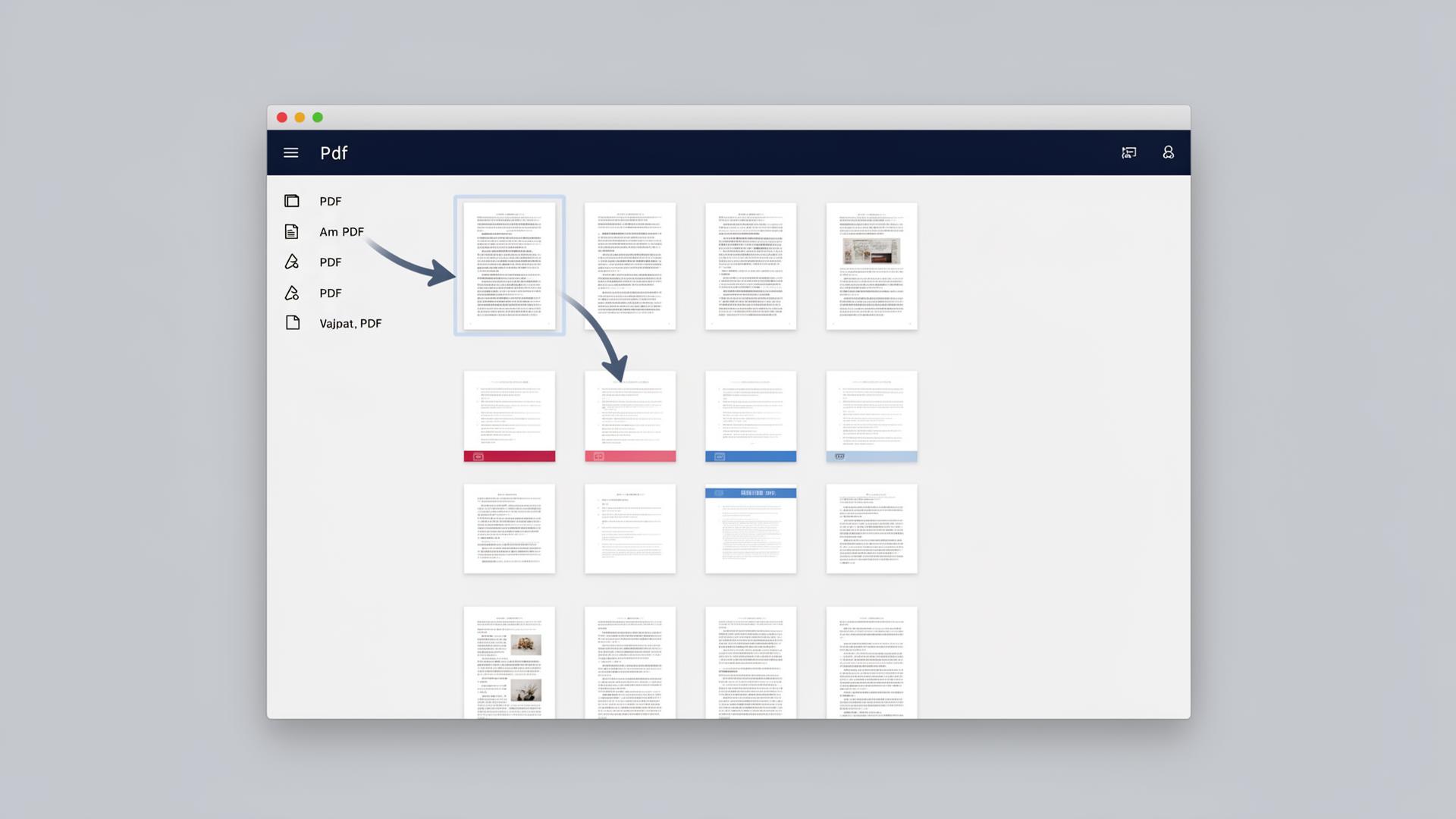
Drop the whole folder into PDF Merge Kit. The app reads every PDF inside it — including subfolders — and lists every file in one window. No need to add them one by one.
If you dragged in a hundred-page scanned contract, it shows up as a single row. If you dragged in ten single-page scans, you get ten rows. Either way, you see them all.
Step 2: Sort into the right order
The fastest way to fix sequence is to sort by metadata. Click the column header to sort by:
- File name — great when your scanner names files sequentially.
- Date modified — useful when you scanned a stack in order and want to preserve that sequence.
- Drag and drop — when the automatic sorts are not enough, grab a row and move it up or down until the list looks right.
If you merged a hundred-page report and then realized page 47 should actually be page 12, drag it. The preview updates instantly so you know exactly where it lands.
Step 3: Name your merged file
Merging without a proper name is painful. You end up with a single giant file called merged.pdf and no idea what is inside. PDF Merge Kit lets you set a naming pattern for the merged output before you click Merge.
Useful patterns:
Report-{date}-{counter}.pdf— for date-stamped documents.Invoice-{original-name}.pdf— preserves part of the original filename.Contract-Signed-{counter}.pdf— for scan batches.
Set the pattern once, and every merged output is named consistently. Your future self will thank you when you are searching a folder six months later.
Step 4: Preview the page order
Before you commit, glance at the page count column. Each row shows how many pages that file contributes. If your first file is a two-page cover sheet and your second file is a forty-page report, the counts tell you the merged order is correct.
When everything looks right, pick an output folder and click Merge.
Why this beats online tools
Online mergers do not let you sort or preview. You upload files, they come out in whatever order the uploader picked, and you download a generically named file that you have to clean up afterward. Worse, you just sent your documents to a server you do not control.
PDF Merge Kit does all the organization work before the merge, keeps every file on your own machine, and outputs a properly named PDF you can find instantly.
Try it free
Download PDF Merge Kit for Windows and organize your next PDF batch in under two minutes.
Ready to merge your PDFs like a pro?
Merge, sort and rename PDF pages offline on Windows — fast and private.
Tags
- pdf merge tool
- windows pdf utility
- rename pdf files
- merge pdf windows